Save Editor / Games / Azeroth Survivors
Azeroth Survivors Save Editor
Edit the .sav exported from Azeroth Survivors in your browser: talent XP and ranks, zone progress, gold and armory items.
Modding instead of editing? How to install mods with r2modman or Gale
⚠ Only edit saves of games you play offline or single-player. Editing saves of online games with anti-cheat or a shared economy can get your account banned.
How to verify it never uploads: open DevTools → Network, load your save and download the edited copy — no request carries your file (the only outgoing call is an anonymous page-view count). You can also load the page, turn off Wi-Fi and edit offline.
What you can edit in Azeroth Survivors
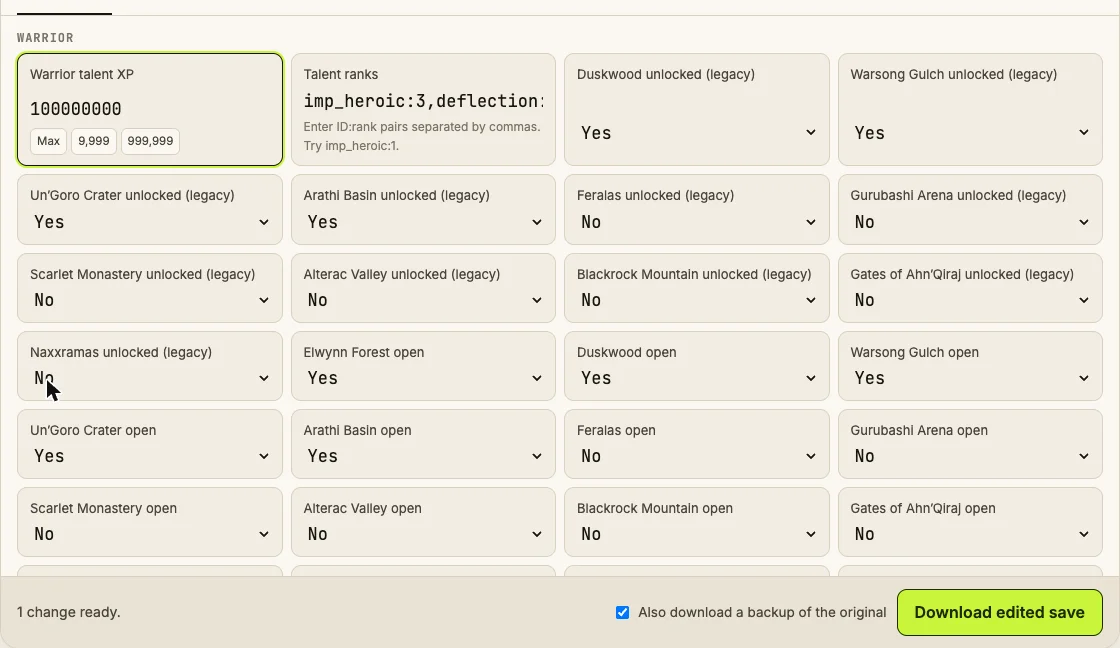
- Talent XP and talent ranks per class (rank caps and prerequisites enforced)
- Zone progress per class: open, cleared and farthest unlocked zone
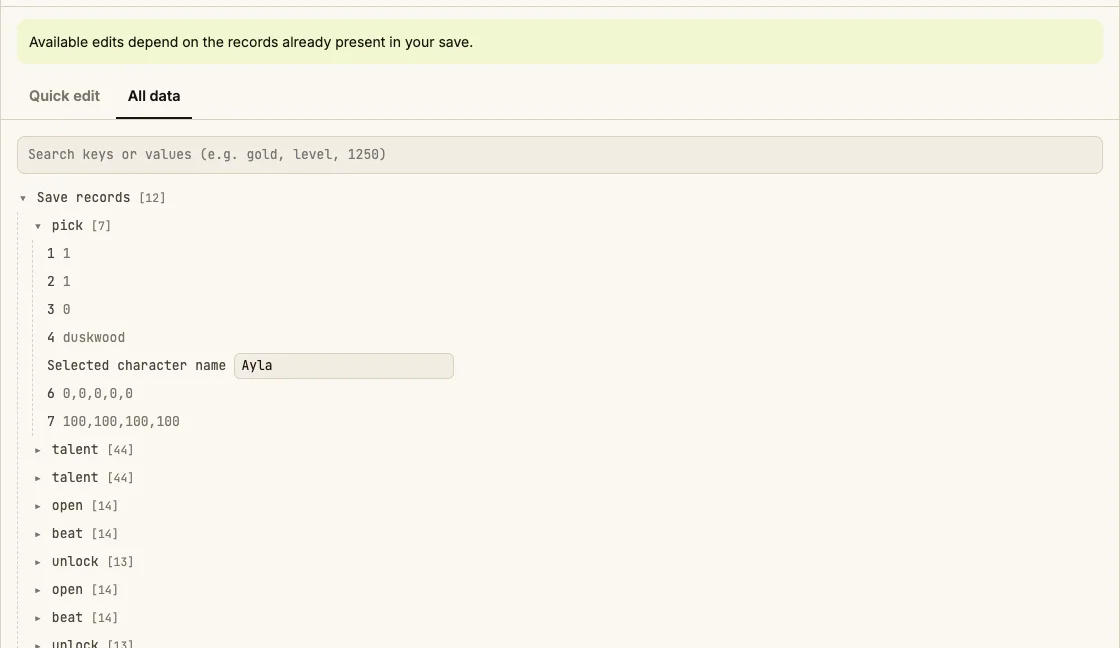
- Selected character name, gold statistic and perk resets
- Armory item IDs per class
- Every record in All data, with unknown ones kept byte-for-byte
Where is the Azeroth Survivors save file?
| Platform | Location |
|---|---|
| Browser version | Options → Saves → Export saveThe game downloads "AzerothSurvivors <date> <time>.sav" to your Downloads folder. Import is on the same page. |
| Windows download | Options → Saves → Export saveThe desktop build uses the same export and import buttons and the same file format. |
| Automatic backups | Options → Saves → BackupsThe game keeps an hourly backup (last 5). Restore one there if an import goes wrong. |
How to edit your Azeroth Survivors save
- In the game, open Options → Saves and click Export save. Keep that file as your untouched backup.
- Drop the .sav into the editor above, or paste its RSE1:… text.
- Change talent XP, ranks, zones or gold in Quick edit. The All data tab shows every record in the save.
- Click Download edited save. The editor writes a freshly sealed RSE1 file.
- Back in the game, open Options → Saves → Import save, pick the edited file and confirm.
- Check your class screen right away, then again after one run.
Tips
- Import replaces your whole account save, including Codex discoveries. Always edit a fresh export, not an old file.
- Players have reported that the Firefox browser version can revert imported progress after a run, while Chrome and the Windows build keep it. If that happens, import in Chrome or the desktop build.
- Zone switches only appear for classes that already have progress records. Play the class once and export again if a zone toggle is missing.
Limits
- The RSE1 seal is checked before anything is shown. A file that was cut off or edited by hand is rejected rather than half-loaded.
- Records we can't identify yet are shown read-only and written back exactly as they were.
- Azeroth Survivors is a fan game that updates often. If an update changes the save format, the editor refuses the file instead of guessing.
Editors that work the same way
- GTA 5 Save Editor (PC Story Mode): edit cash in protected PC story saves.
- CoC2 Save Editor (Corruption of Champions 2): edit currency and stats in a game file export.
- Animal Crossing: New Leaf Save Editor (ACNL): edit resident currencies in a 3DS town backup.
- Balatro Save Editor: edit local progress in another game with a binary save.
- Midgard Survivors Save Editor: Zeny, cards and refine levels in the Ragnarok-style survivors-like's encrypted profile.
Azeroth Survivors save editing FAQ
How do I export my Azeroth Survivors save?
Options → Saves → Export save. The game downloads a file named AzerothSurvivors followed by the date and time, ending in .sav.
What is the RSE1 text in the file?
The .sav is plain text: RSE1: followed by Base64. Inside is a 16-byte nonce, the encrypted records and a 20-byte HMAC-SHA1 tag. The game rejects any file whose tag doesn't match, which is why editing it in Notepad fails and this editor re-seals it.
Why did my import not change anything?
Make sure you edited your newest export. Importing an older file replaces your account with that older state. In the Firefox browser version, try Chrome or the Windows build.
Can I undo an import?
Yes. Import your original export again, or restore one of the game's automatic hourly backups from Options → Saves.
Is this an official tool?
No. It's an independent fan tool, not affiliated with the game's developers or with Blizzard.
Is my save uploaded?
No. Decryption, editing and re-sealing happen in your browser. The page works offline once loaded.
Tested on two real v0.145.2 exports from the browser version (fresh account and after one run): both authenticate and export byte-identically. Edits re-seal with a valid HMAC tag, and tampered files are rejected. A renamed save made here was imported through the game's own Options → Saves → Import save and the hero loaded with the new name. Save Editor is an independent tool and isn't affiliated with the makers of Azeroth Survivors.
Other save editors